Most people already have an AI assistant. It lives in a separate app they forget to open.
WhatsApp is the app nobody forgets to open. Meta published the developer manual and terms for a new feature on August 25, 2026, and has been rolling it out since. It lets you connect your own AI agent to it: a private chat, in your normal chat list, that runs whatever brain and instructions you choose.
I built one, tested it on my phone, and published the template. This post covers three things: what the feature actually is, what it's good for, and how to set yours up with a free key.
What Meta actually shipped
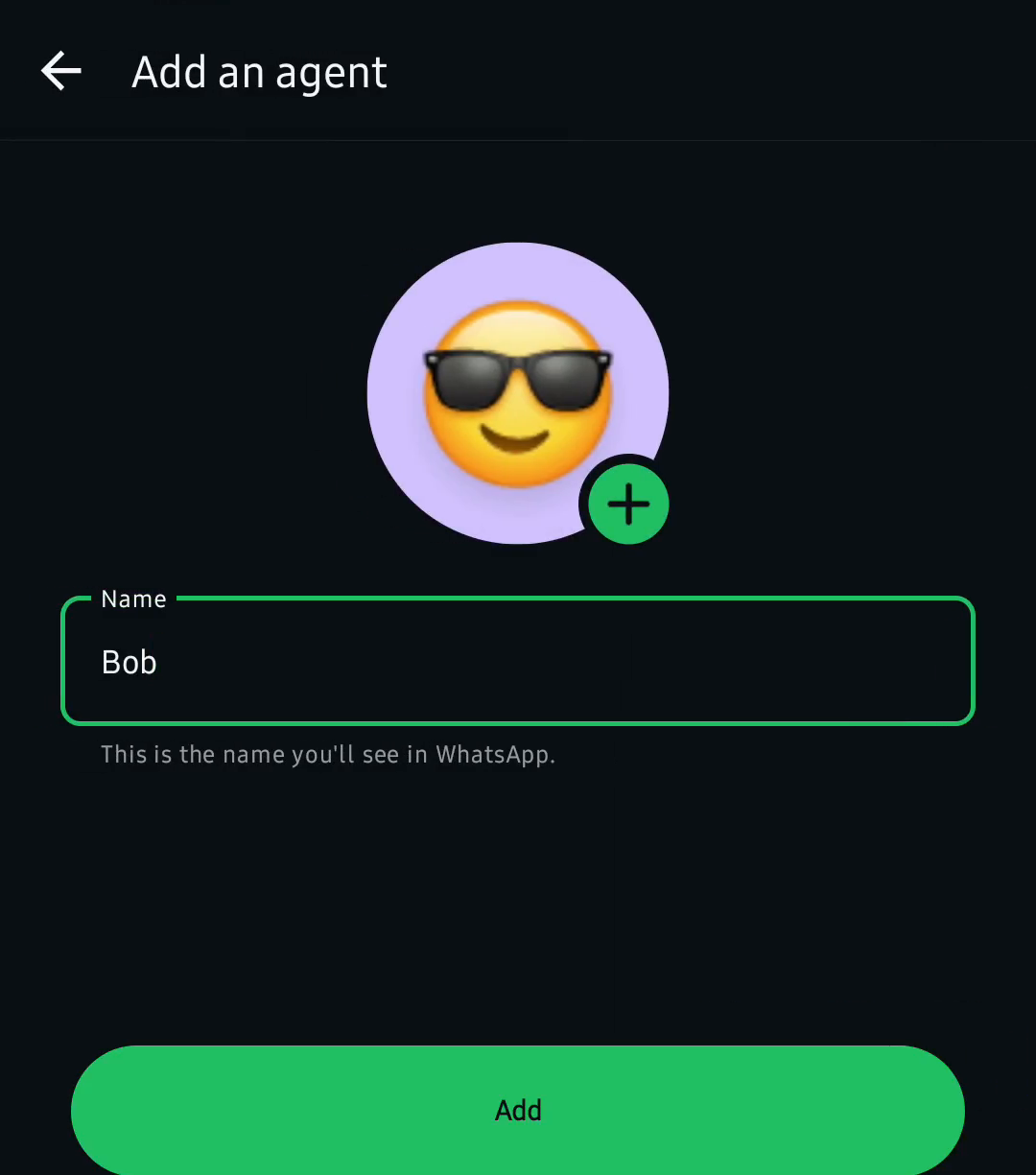
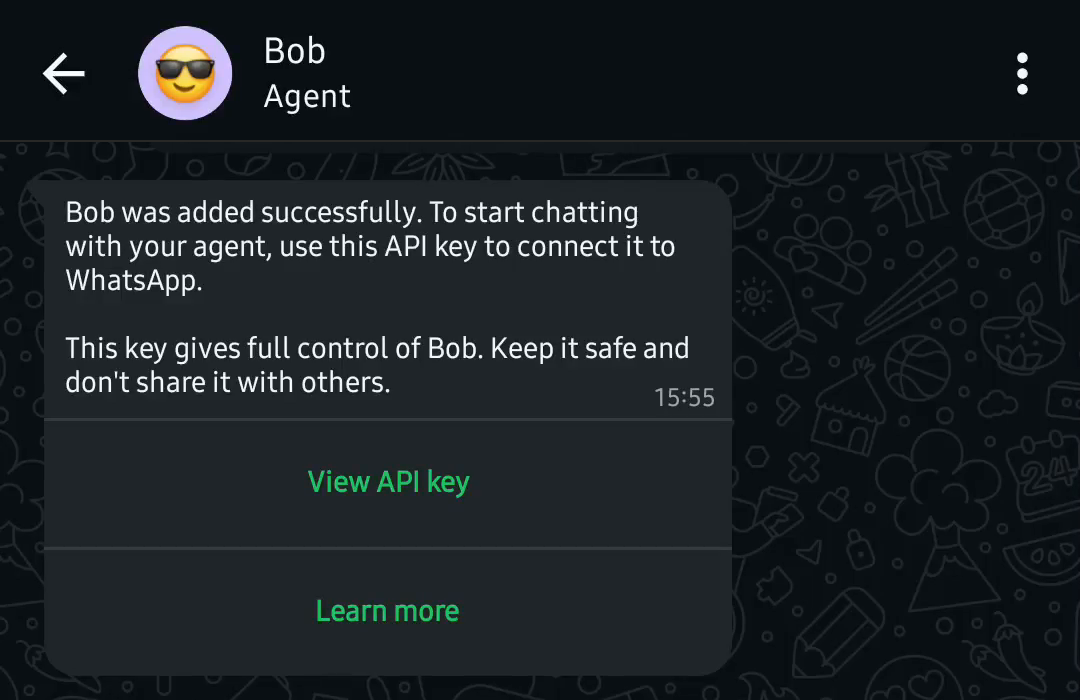
In WhatsApp, under Settings → Agents, you can create an agent: give it a name and a photo, and WhatsApp opens a chat with it and gives you an API key. Paste that key into a program running somewhere (your laptop is fine) and that program becomes the agent's brain.
The rules, straight from Meta's terms and developer manual:
- Up to 5 agents per WhatsApp account.
- Only you can talk to it. An agent can message only the account that created it. No groups, no other people, not even your other agents.
- It can only see what you send it. Not your other chats, contacts or gallery.
- Not end-to-end encrypted. Messages pass through a Meta service and reach whichever AI company you connect. Your normal chats stay end-to-end encrypted; this chat is different.
- Free from WhatsApp's side for now. You pay only for the AI you plug in, and Gemini has a free tier.
- Limited rollout. It's in select countries and beta builds first, so you may not see it yet even if a friend does.
Takeaway: treat it as a private assistant for you, not a customer-service bot. For talking to customers, the WhatsApp Business API is still the tool.
What a personal agent is good for
The best uses are the ones where WhatsApp is already where the thing happens. Here's what my template does out of the box:
| You send | Bob does |
|---|---|
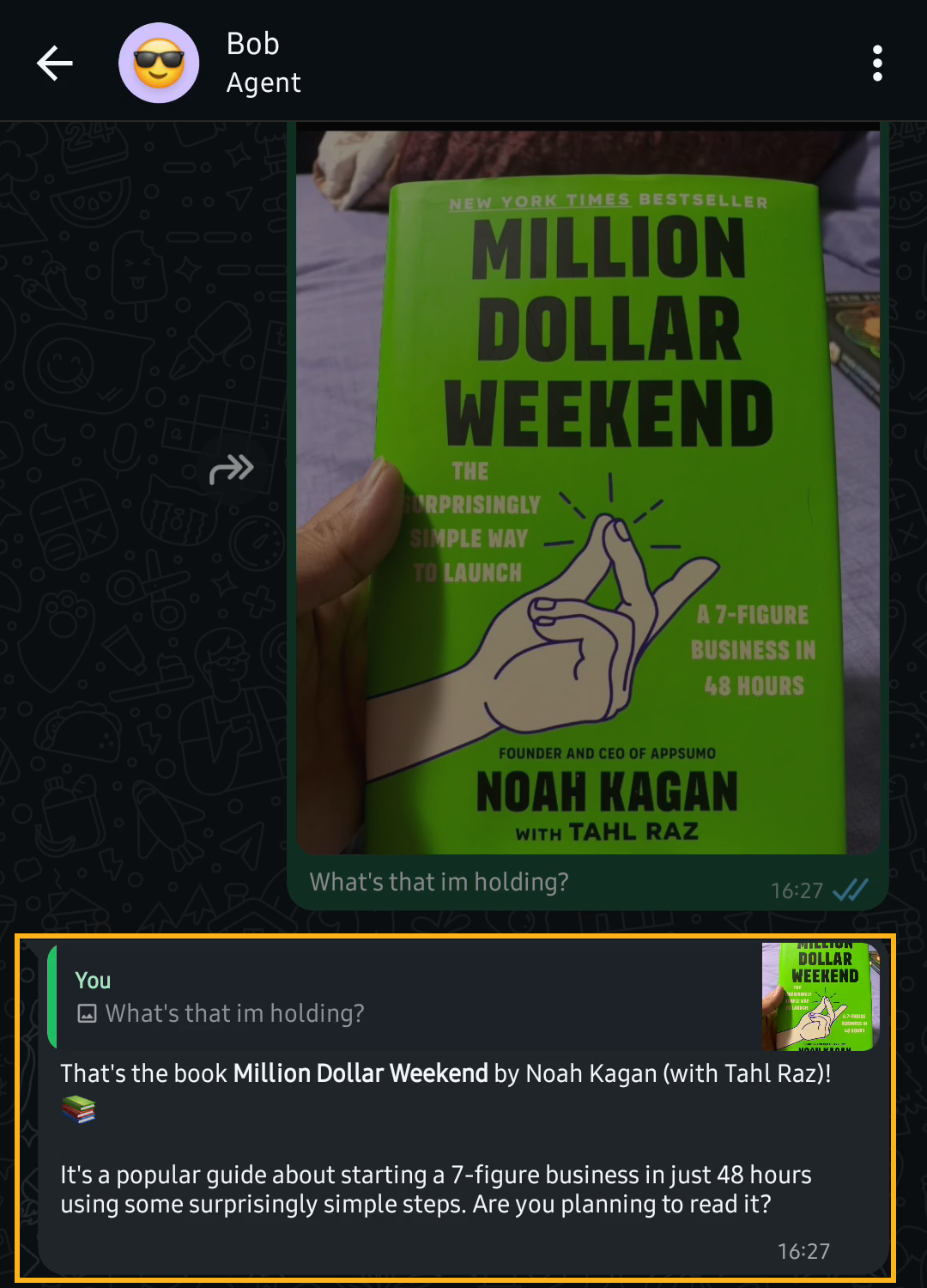
| A photo of a bill, form or medicine box | Explains it in plain words: what it is, what to do, by when |
| A photo of a menu or sign in another language | Translates and explains it |
| "Remind me to call mom at 6" | Confirms, then messages you first at 6 |
| A voice note in Urdu or Arabic | Replies in the same language (Gemini brain) |
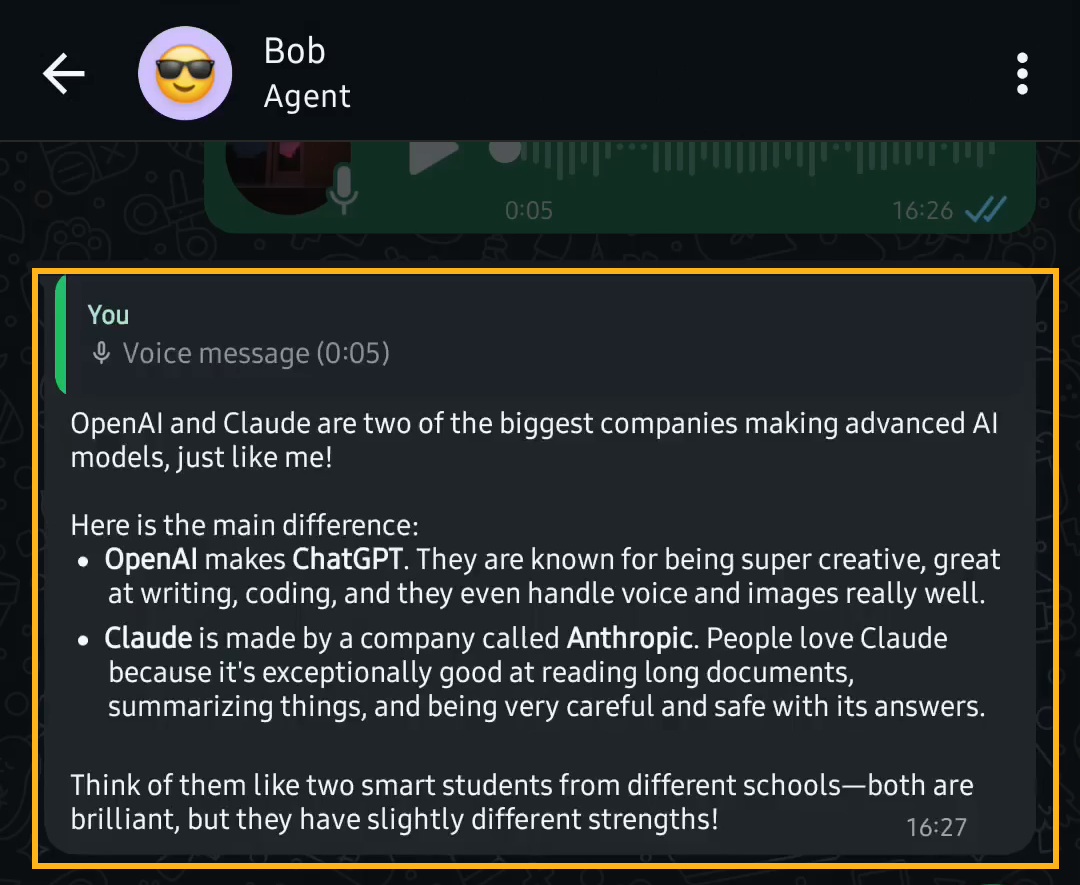
| A PDF | Summarises it (Gemini or Claude brain) |
/reset | Forgets the conversation and starts fresh |
Here's what it looked like on my phone. I named the test agent Bob.
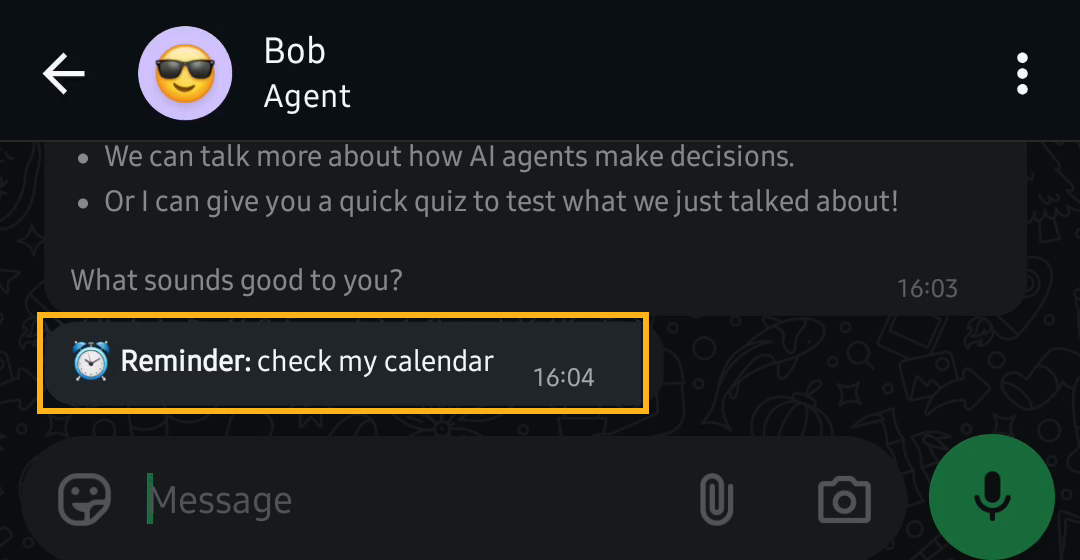
That reminder is the important one. A normal chatbot only answers. An agent can start the conversation: a reminder, a daily summary, a nudge. That's the difference between a tool you visit and an assistant that shows up.
And because the personality lives in one plain-English file, the same template becomes something else in minutes:
- "You're a patient maths tutor for my 12-year-old. Give hints, never the answer straight away."
- "You're my fitness coach. I train three days a week. Ask how today's session went."
- "You help me run my bakery. Our prices are..."
Takeaway: pick one job that already happens in WhatsApp for you, and write it down as three or four sentences. That's your prompt.
Set yours up in 10 minutes
You need: WhatsApp with the Agents option, a Windows or Mac computer with Python, and one AI key.
Choose a brain
| Brain | Cost | Default model in the template | Good at |
|---|---|---|---|
| Google Gemini | Free tier | gemini-3.5-flash-lite | Photos, PDFs and voice notes |
| Claude (Anthropic) | Pay per use | claude-haiku-5-5 | Photos, PDFs, careful writing |
| OpenAI | Pay per use | gpt-6-luna | Photos, low cost |
No key yet? Start with Gemini: get one free at aistudio.google.com/apikey.
The steps
- Create the agent. WhatsApp → Settings → Agents → Create. Name it, add a photo, then tap View API key in its chat and copy the key. Treat it like a password: whoever has it controls your agent.
- Download the template. Go to github.com/muaazdev/whatsapp-agent → green Code button → Download ZIP → unzip it.
- Add your keys. Double-click
start.bat(Mac:sh start.sh). It creates a file called.envand opens it. Paste:
WHATSAPP_AGENT_KEY=the-key-from-whatsapp
AI_PROVIDER=gemini
GEMINI_API_KEY=your-free-gemini-key
UTC_OFFSET_HOURS=3
- Make it yours. Open
prompt.mdand rewrite who your assistant is, in plain English. - Start it. Double-click
start.batagain. When it says it's running, say hi to your agent in WhatsApp.
It answers while that window is open. Close it and the agent goes quiet. Messages you send while it's off wait for it (Meta keeps them for 30 days), so nothing is lost.
Takeaway: the whole setup is two files: prompt.md for who it is and .env for keys. You never touch the code.
Under the hood (for engineers)
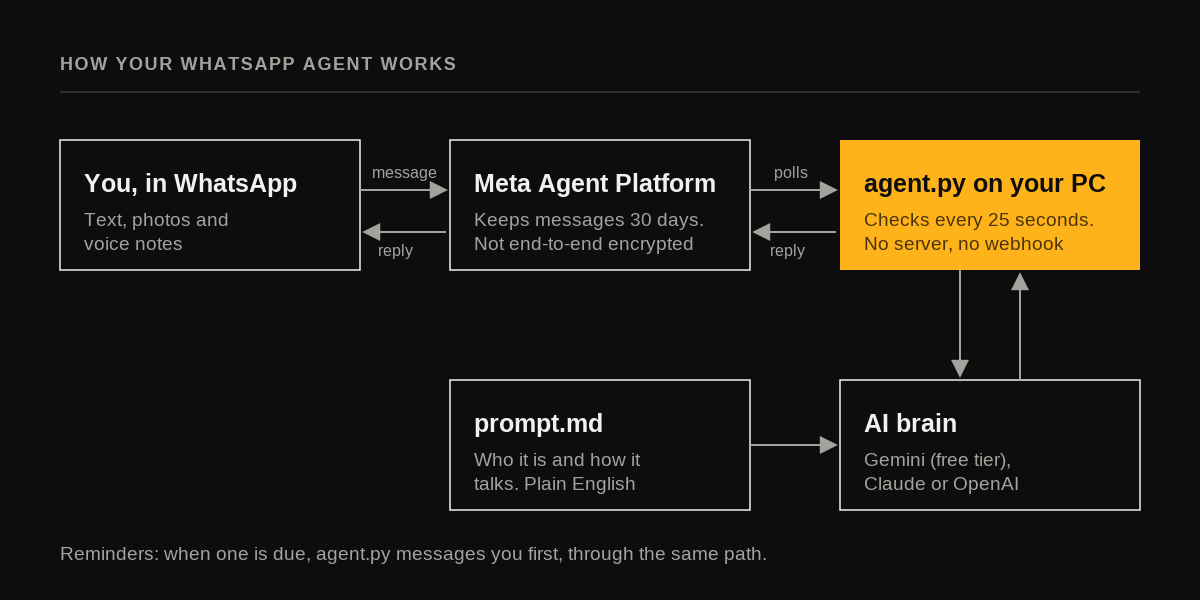
If you build agents for a living, the protocol is refreshingly small. Base URL https://api.whatsapp.com/agent/v1, auth is Authorization: Bearer <agent key>, and there are four endpoints that matter:
| Endpoint | Purpose |
|---|---|
GET /updates?offset=&timeout=25 | Long-poll for messages and receipts |
POST /messages | Send text or media (to the creator only) |
POST /statuses | Blue ticks, plus an optional typing indicator |
GET /media/{id} | Metadata + URL to download what the user sent |
The design choices that shape everything:
- No webhooks. Long polling only. The agent holds a request open for up to 25 seconds. So it needs no public URL, TLS cert or tunnel. It runs behind any firewall with outbound HTTPS. This is why a laptop is a valid deployment target.
- One poller per key. Start a second process and the first gets HTTP 409. In development, create a second agent rather than sharing a key.
- Offsets are yours to keep. Each response returns
next_offset; a 204 (nothing new) doesn't, so you re-poll with the same one. Polling doesn't consume messages, but marking read does, so mark after you've handled a message if you care about replay after a crash. - Tight rate limits. 12 sends, 12 status updates and 15 polls per minute per agent, and text tops out at 4,096 characters. No message edits, so token streaming is out: send one complete reply.
- Proactive sends are allowed, to the creator. That's what makes scheduled reminders possible without any template-message approval flow.
How the template stays at one file (~350 lines, only dependency requests):
- One loop does everything: check due reminders → long-poll → handle messages → save the offset.
- Three brains behind one function. Gemini, Claude and OpenAI each get a ~20-line adapter that turns "text + optional image/PDF/audio bytes" into that provider's request shape.
- Reminders without a scheduler. The system prompt asks the model to append one hidden line,
REMIND: YYYY-MM-DD HH:MM | text, when the user asks for a reminder. The code strips it from the reply, stores it indata/reminders.json, and the loop sends it when it's due. Because a poll returns at least every 25 seconds, reminders land within about half a minute. - State is three JSON files: offset + creator id, the last 20 turns of history, and pending reminders.
- Tested offline.
tests/test_agent.pyfakes Meta's API and all three AI providers, then asserts the exact requests: read receipt with typing indicator, quoted reply, hidden reminder line stripped, reminder delivered, offset persisted.
Takeaway (copy this pre-ship checklist):
- One process per key; exit loudly on 409
- Persist
next_offset; don't advance it on 204 - Mark read before the slow model call only if you accept losing that message on a crash
- Chunk replies under 4,096 chars and pace sends under 12/min
- Tell users plainly that this chat isn't end-to-end encrypted
Where it stops
Be honest with yourself and anyone you share this with:
- It's personal. One person, one chat. For customers, use the WhatsApp Business API.
- It needs a running computer. For 24/7, run it on a small always-on machine instead of a laptop.
- Privacy is different here. Don't send passwords, ID scans or anything you wouldn't put in an email.
- AI can be wrong. For health, money or legal answers, it should point you to a professional, and the default prompt tells it to.
Try it this week
Pick one annoying thing you already do in WhatsApp: forwarding bills to yourself, translating messages, remembering calls. Write three sentences about how you'd want an assistant to handle it. Paste them into prompt.md. That's your first agent.
Template: github.com/muaazdev/whatsapp-agent
Sources
- WhatsApp Terms of Service for Third-Party Agents (last updated Aug 25, 2026)
- WhatsApp in-app Help article: "About adding and chatting with third-party agents through WhatsApp"
- WhatsApp Agent Platform Developer Manual v1
- WABetaInfo: WhatsApp is rolling out chats with third-party agents on iOS (Sep 22, 2026)
- whagent docs: how the Agent Platform API works
- Hermes WhatsApp Agent Platform plugin: limits and media
- Gemini API pricing (free tier)
- Claude models overview
- OpenAI gpt-6-luna model page
- Template repo: muaazdev/whatsapp-agent